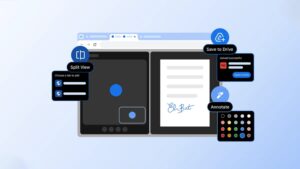
Google has rolled out three new productivity-focused features to its Chrome web browser via version 145, aimed at reducing friction for users who spend much of their day working in the browser. The update introduces split view, PDF annotations, and a new “Save to Google Drive” option, all designed to help users work more efficiently without relying on additional apps or workflows.
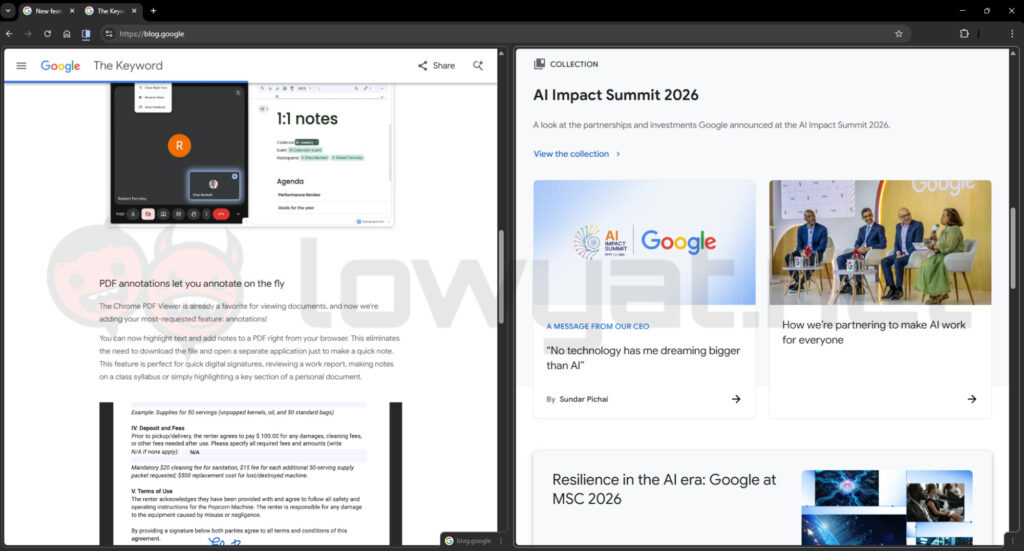
The first addition, Split View, allows users to view two tabs side by side within a single window. This addresses a common pain point of constantly switching between tabs or managing multiple windows, especially during research or multitasking-heavy tasks.
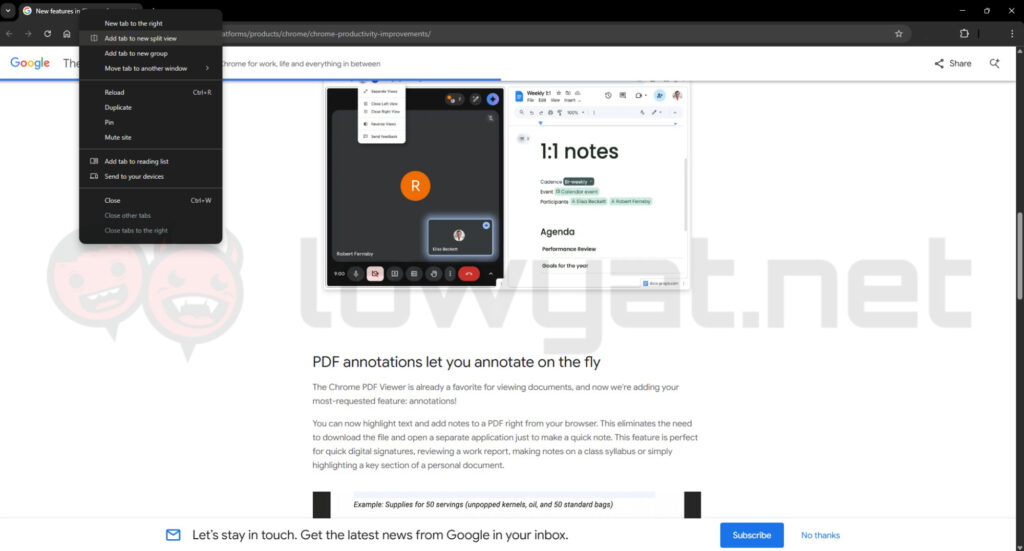
To use Split View:
- Open two tabs in Chrome.
- Right-click on one of the tabs and select the Split View option (or drag a tab to the side, depending on your version).
- Chrome will automatically arrange both tabs into a single window layout.
- Resize each pane as needed to suit your workflow.
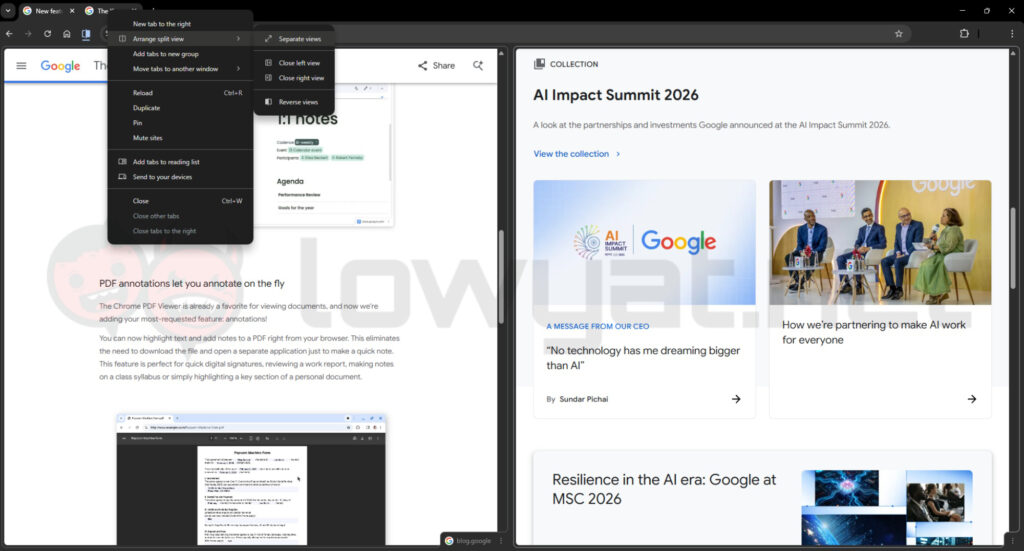
- To split them apart, right click the tab and select Separate Views. Alternatively, you can remove either side by selecting Close Left/Right View.
Chrome is also expanding its built-in PDF Viewer with Annotation Tools, enabling users to highlight text and add notes directly within the browser. This removes the need to download files or rely on third-party software for simple edits or reviews.
To annotate a PDF:
- Open the PDF file in Chrome.
- Use the highlight or Annotation Tools available in the viewer toolbar.
- Select text to highlight or click to add a note.
- Save your changes directly to the file.
The third feature introduces tighter integration with Google Drive, allowing users to save PDFs directly to the cloud without first downloading them locally. This aims to simplify file management and reduce the chances of losing track of important downloads.
To save files directly to Drive:
- Open or download a PDF in Chrome.
- Select the “Save to Google Drive” option when prompted.
- The file will be stored in the “Saved from Chrome” folder in your Drive.
- Access, search, or share the file across your devices as needed.
(Source: Google [official blog])